Install the theme
Follow the steps below to upload the theme:
- Log in to your publication admin section at
yoursite.com/ghost/ - Go to Settings > Design (
/ghost/#/settings/design/) - Click Change theme (
/ghost/#/settings/design/change-theme) - Click Upload theme and select the
thred.zipfile. - After the upload is complete, under Installed themes click Activate
Routes setup
Caution
For the theme to function properly you must upload the routes.yaml file.
The file is located inside the thred.zip
Follow the steps below to upload the routes.yaml file (this is a separate step from theme upload)
- Log in to your publication admin section at
yoursite.com/ghost/ - Go to Settings > Labs (
/ghost/#/settings/labs) - In the Routes section, click Upload routes file and select the
routes.yamlfrom the root directory of the theme.
The zip’s routes.yaml matches how this theme expects URLs to behave. If you want the full picture of what you can do with routing in Ghost—collections, channels, taxonomies, and static routes—see the blog overview Ghost CMS dynamic routing & routes.yaml.
This is a testing ground for new or experimental features. They may change, break or inexplicably disappear at any time.
more info in the docs
Custom settings
The theme comes with custom design settings, which are accessible from the Ghost Admin panel.
To view and edit these settings go to Settings > Design & Branding ( yoursite.com/ghost/#/settings/design/)
Custom settings are defined in the package.json file.
These settings are placed under three categories:
- Site-wide settings
- Homepage settings
- Post settings
Here's a preview of the available settings:
Note
To avoid resetting your custom design settings during theme updates, make sure to use the same name for the .zip file or use the GitHub action to deploy your theme.
Homepage
The homepage is defined in home.hbs and consists of several sections;
what appears is controlled by Design settings:
Hero
The hero is implemented in partials/hero.hbs. It appears only on the homepage when Hero headline is set in Design settings (homepage group). If you leave the headline empty, the hero block is hidden.
The headline and subheading are controlled from the design settings with the Hero headline and Hero subheading options.
The image is your Publication cover (Ghost Admin → Settings → General → Publication cover). Its placement is controlled by Hero image position:
- None — No image; only headline, subheading, and optional action. Content centered.
- Top — Image above text. Stacked layout, content centered.
- Bottom — Image below text. Stacked layout, content centered.
- Left — Image on the left, text on the right. Side‑by‑side, text left‑aligned.
- Right — Image on the right, text on the left. Side‑by‑side, text left‑aligned.
- Background — Cover image fills the hero behind the text. Text is centered and styled in white; the section has extra vertical padding.
You can also add a call to action under the subheading, controlled from the design settings with the Hero action option.
- None — No button or form.
- Subscribe — Inline subscribe form (only for visitors who are not logged in).
- CTA — Single button using your main CTA text and URL (same as the sidebar CTA). Configure CTA text and CTA link in Design settings.
Post feeds
The homepage renders the following post feeds:
- Latest — The latest posts.
- Featured — The featured posts.
- Updated — The posts sorted by updated date.
- Categories — The categories list with posts for each category.
You can set the default active feed from the design settings with the Default feed option.
Categories
The categories list is built from a page with the slug home-categories. Create a page in Ghost, set its slug to home-categories, and add the tags you want as categories to that page. Each category shows its name, description (if set), a ‘View all’ link, and the 5 latest posts for that tag.
Left sidebar
The left sidebar is defined in partials/sidebar-left.hbs and it renders:
- primary navigation (including dropdown menus)
- categories
- authors
- secondary navigation
Sidebar categories
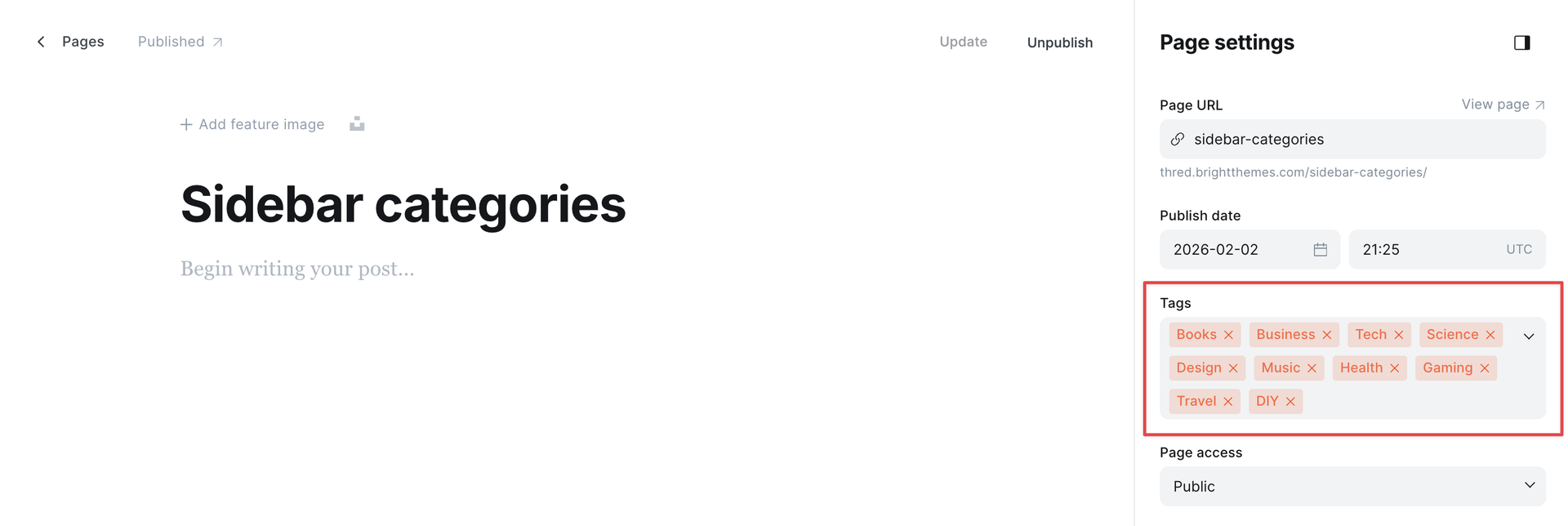
To add the categories to the left sidebar, you need to create a page with the slug sidebar-categories and add the tags you want to display to the page.
Sidebar authors
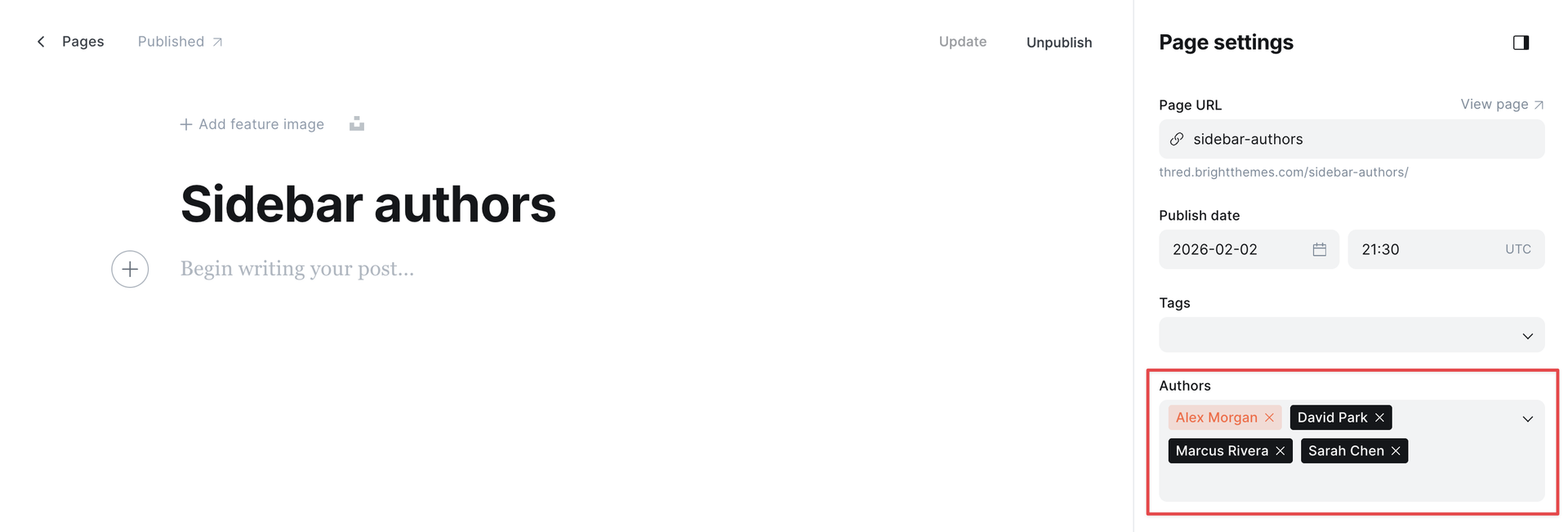
To add the authors to the left sidebar, you need to create a page with the slug sidebar-authors and add the authors you want to display to the page.
Right sidebar
The right sidebar is defined in partials/sidebar-right.hbs and it renders:
- author (only on posts)
- about - based on the site settings (publication icon, publication name, publication description and a subscribe form)
- follow
- recommendations
- cta
- footer
Sidebar recommendations
Based on the native Ghost Recommendations feature.
You can manage your recommendations in Ghost Admin → Settings → Recommendations
(#/settings/recommendations).
Sidebar cta
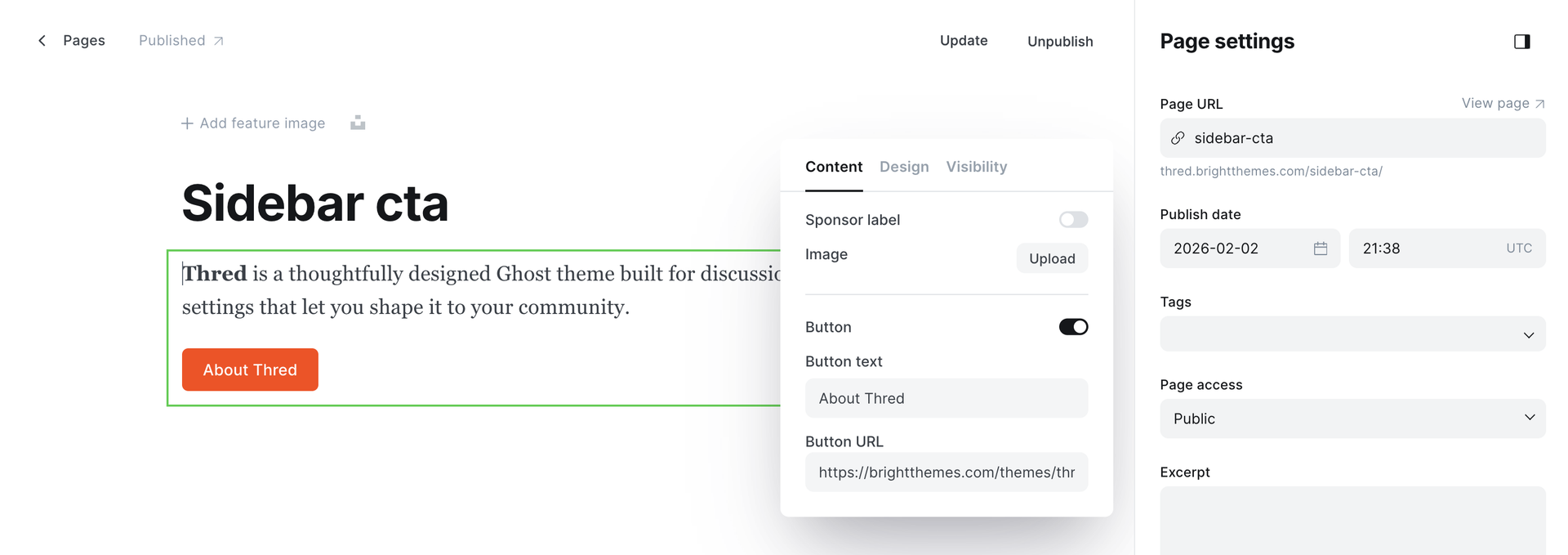
To add the CTA to the right sidebar, create a page with the slug sidebar-cta and add the content you want to display. We recommend using the built-in call to action card.
Footer
The footer is defined in partials/footer.hbs and is part of the right sidebar. It displays a copyright notice with the year, the publication name, and the theme name (Thred).
Header
The header is defined in partials/header.hbs and it renders:
- publication logo
- search button
- main action buttons (CTA, user menu)
Post card
The post card is defined in partials/post-card.hbs and it renders:
- post title
- post excerpt
- post image
- post date
- post author
- post tags
- post reading time
- post comments count
You can set the default style from Settings > Design > Homepage > Post feed style with the following options:
- list — articles as a list
- compact — articles as compact cards
- cards — articles as cards
- articles — articles as full articles
In addition, users can change the style of the feed from the homepage by clicking the feed style button in the top right corner of the feed.
Post templates
Thred includes 2 post templates. You can select them from the Post Settings menu:
- default template
- post without sidebar (for full-width content)
Custom templates
The theme includes several custom page templates. You can select them from the Page Settings menu, under Template:
custom-template-account.hbs— a template to create account pagecustom-template-authors.hbs— a template to create authors pagecustom-template-blank.hbs— a template to create pages without header and footer and sidebars, like landing pagescustom-template-membership.hbs— membership pagecustom-template-signin.hbs- a template to create sign in pagecustom-template-signup.hbs- a template to create sign up pagecustom-template-tags.hbs- a template to create Tags page
Color customization
You can change the main accent color from Settings > Design > Brand. The most important CSS configurations of the theme are defined as custom CSS properties, so you can easily overwrite them from Code Injection to change background colors, text colors, and more.
The theme includes several color schemes. You can set the default in Ghost Admin using Default color scheme in Settings > Design > Site-Wide.
The included color schemes:
- system
- light
- dark
The default is system, which follows the user's preference (dark or light).
You can change the colors by overriding the CSS properties. Add the following in Code Injection and adjust the values.
To change the light theme:
<style>
  :root {
    --color-typ: hsl(0, 0%, 5%);
    --color-typ-tone: hsl(0, 0%, 30%);
    --color-typ-content: hsl(0, 0%, 25%);
    --color-bgr: hsl(0, 0%, 99%);
    --color-bgr-tone: hsl(0, 0%, 96%);
    --color-brd: hsl(0, 0%, 90%);
  }
</style>
To change the dark theme:
<style>
  html[data-color-scheme="dark"]:root {
    --color-typ: hsl(0, 0%, 90%);
    --color-typ-tone: hsl(0, 0%, 70%);
    --color-typ-content: hsl(0, 0%, 80%);
    --color-bgr: hsl(0, 0%, 4%);
    --color-bgr-tone: hsl(0, 0%, 9%);
    --color-brd: hsl(0, 0%, 15%);
  }
</style>
Some useful tools for choosing colors and gradients:
Fonts
By default the theme uses the Geist font for body and headings. You can change the fonts from Settings > Design > Brand > Typography, with several options for both body and headings.
If you want to use a custom font, you can check out this guide on how to add custom fonts.
Dropdown menus
thred comes with a custom feature to create
dropdown menus easily for your header navigation. All you have to do is add the
minus sign (-) in front of the items in Settings > Navigation
Items having the - sign will be added as subitems to the previous navigation item.
For example:
Ghost config
Some configurations in Ghost themes can be defined in the package.json file, including
Posts per page, Image sizes, and Custom settings.
Posts per page
The posts_per_page defines the number of posts that appear in your collections until it's paginated.
For example, the value of posts_per_page is used on the home page, tag, and author templates.
You can change it in the package.json file:
"config": {
  "posts_per_page": 12
}
Image sizes
Ghost can handle responsive image sizes,
and this is defined in the package.json file, under the image_sizes property.
You can change the default configuration by editing this file before uploading the theme.
"image_sizes": {
  "xxs": {
    "width": 30
  },
  "xs": {
    "width": 100
  },
  "s": {
    "width": 320
  },
  "m": {
    "width": 640
  },
  "l": {
    "width": 960
  },
  "xl": {
    "width": 1280
  },
  "xxl": {
    "width": 2000
  }
}
The sizes defined will be used to generate copies of images at the specified sizes when uploading images in your Ghost Admin.
Syntax highlighting
On posts and pages, if you’ve enabled syntax highlighting in the theme settings, the theme will color code snippets in your content to make them easier to read.
It uses Shiki to highlight the code blocks. With these defaults from the theme:
| Setting | Default value |
|---|---|
| LANGS | ['javascript', 'html', 'css', 'bash'] |
| DARK_THEME | 'github-dark' |
| LIGHT_THEME | 'github-light' |
All the themes supported by Shiki are listed here. All the languages supported by Shiki are listed here.
To change them without editing the theme, go to Ghost Admin → Settings → Code Injection → Site Header and add the following, changing the values as needed:
<script>
  THEME_CONFIG.SYNTAX.LANGS = ['javascript', 'html', 'css', 'bash', 'python', 'json'];
  THEME_CONFIG.SYNTAX.DARK_THEME = 'github-dark';
  THEME_CONFIG.SYNTAX.LIGHT_THEME = 'github-light';
</script>
Comments
The theme uses the native Ghost comment feature. The Native Comment System requires at least Ghost v5.9.0, you have to enable it from Settings > Membership > Access > Commenting.
Here are the options you can choose from:
All members- Logged-in membersPaid-members only- Only logged-in members with an active subscriptionNobody- Disable commenting completely
Icons
The icons used in the theme are from Tabler Icons, the library consists of 5000+ icons.
Only the icons used in the theme are included in the partials/icons directory
in separate .hbs files.
Here are the steps to add new icons:
- Go to Tabler Icons and click on the Icon you want to add, this will copy the code to your clipboard.
- Go into the
partials/iconsdirectory and create a new file:your-icon.hbs - Open the new file and paste the copied code from the clipboard.
- Save the file.
For using the icons inside the theme files, there is a special partial file
partials/icon.hbs which accepts name and size as parameters.
Let's see an example and try to add a new icon. Assuming we want to add the icon
camera and by clicking on the icon on the website, we get this code:
<svg xmlns="http://www.w3.org/2000/svg" class="icon icon-tabler icon-tabler-camera" width="24" height="24" viewBox="0 0 24 24" strokeWidth="1.5" stroke="#2c3e50" fill="none" strokeLinecap="round" strokeLinejoin="round">
  <path stroke="none" d="M0 0h24v24H0z" fill="none"/>
  <path d="M5 7h1a2 2 0 0 0 2 -2a1 1 0 0 1 1 -1h6a1 1 0 0 1 1 1a2 2 0 0 0 2 2h1a2 2 0 0 1 2 2v9a2 2 0 0 1 -2 2h-14a2 2 0 0 1 -2 -2v-9a2 2 0 0 1 2 -2" />
  <circle cx="12" cy="13" r="3" />
</svg>
The next step is to create a new file: partials/icons/camera.hbs and paste the copied code in the file.
The new file must be of .hbs type, so we can use it into the theme files:
{{>icon name="camera"}}
Social links
The theme supports all social platforms that Ghost supports.
You can find these in your Ghost Admin under Settings > General settings > Social accounts.
In addition, the theme also comes with additional social platforms, like:
- discord
- github
- telegram
- tiktok
To activate any of these platforms, add the following in your Settings > Code Injection > Site footer.
For example to activate GitHub:
<script>
  socials.github = 'https://github.com/brightthemes'
</script>
Note
If you want to add a social platform that isn't listed, you have to add the corresponding
icon then modify the partials/social-links.hbs file, adding the block
similar to the other platforms there.
Social sharing
Social sharing is part of the post layout and the following is included:
- X(Twitter)
- Bluesky
- Copy to clipboard
To add other social sharing options you need to edit the partials/social-share.hbs file.
Translations
By default, everything is in English (en.json), additionally, the theme comes with translations in:
- 🇩🇪 German (
de.json) - 🇪🇸 Spanish (
es.json) - 🇫🇷 French (
fr.json) - 🇮🇹 Italian (
it.json) - 🇳🇱 Dutch (
nl.json) - 🇵🇹 Portuguese (
pt.json)
Note
For a translation to apply, you have to set the language in Settings > General Settings > Publication language.
If you want to edit the translation in a specific language, you have to edit the corresponding translation file.
The files are stored in the locales directory (inside the theme zip).
|__ locales
|   |__ de.json
|   |__ en.json
|   |__ es.json
|   |__ fr.json
If the language file for your language doesn't exist, you have to create it (make sure to use the correct language code)
The best way is to copy the content en.json file in your new language file, then change the translations.
Theme development
If you want to make more advanced changes to the theme, or you want to implement your own components, you can take advantage of the developer-friendly setup of the theme.
All the assets are combined and minified for better speed and performance. To customize the theme make sure you have Node.js installed.
The theme is built with TailwindCSS and Alpine.js. The development environment is based on Vite, the tasks can ran with npm scripts.
This guide is assuming that you have installed Ghost locally.
Add the theme directory inside Ghost's content/themes/ directory then move to the
theme directory in your command line. Run the npm install command to install all
the dependencies.
After that is done, you have access to run the npm scripts:
-
npm run dev(vite build --watch & vite) The dev script will start the development process, watching for changes and building. Thevite.config.jsfile contains the main configuration for Vite. -
npm run build(vite build) The build script will start the build process. -
npm run test(gscan . --verbose) The test will test the theme using gscan the official Ghost test tool. -
npm run zipThe zip script will create a zip file in thedistdirectory.
Code Snippets
Frequently asked questions and useful snippets you can use to make some quick changes to your site.
How to change the logo size?
Go to Ghost Admin › Settings › [Code Injection](/blog/ghost-code-injection/) and in the Site Header add the following, changing the values as needed:
<style>
:root {
  --logo-h-mobile: 40px;
  --logo-w-mobile: auto;
  --logo-h-desktop: 64px;
  --logo-w-desktop: auto;
}
</style>
How to hide "published with" from the footer?
Go to Ghost Admin › Settings › [Code Injection](/blog/ghost-code-injection/) and in the Site Header add:
<style>[data-footer-ghost],[data-footer-theme]{display:none;}</style>