
On this page
Ghost has its own comment system, built on members: readers sign in to comment, so there is no separate account, no extra service and very little spam. It has been part of Ghost since 2022 and has grown since, with threads, votes, pinned comments and a moderation screen in Ghost Admin. This guide covers all of it, from the setting that turns comments on to the theme code that shows them.
Turn comments on
You choose who can comment in Settings › Membership › Access, under Who can comment on posts?:
- All members: any signed-in member, free or paid.
- Paid-members only: members with an active paid subscription.
- Nobody: comments are off.
On new sites comments are open to all members, so check this setting if you don’t want them.
Your newsletters can invite readers to the conversation too: in each newsletter’s design settings, the footer section has a toggle that adds a call to comment, linking to the post’s comments.
Who sees what
Comments show under a post only when they’re on and the visitor has access to that post, so a paid post’s comments stay with its paid readers. Visitors who can read the post but can’t comment still see the thread, and are asked to sign in or upgrade when they try to join in.
That makes comments something you can offer: with Paid-members only, the conversation is part of what a paid subscription gets.
What members can do
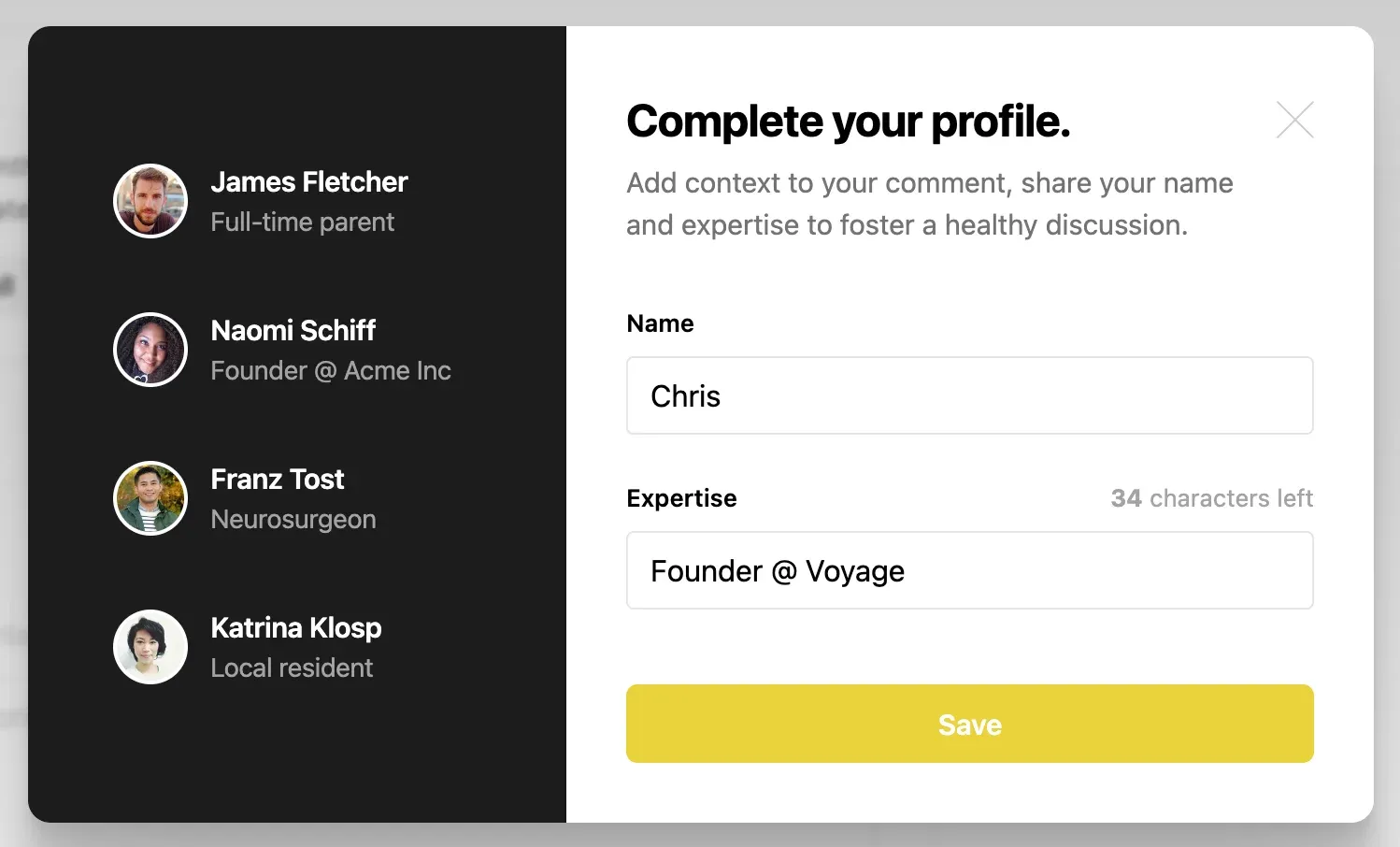
The first time members comment, they’re asked to complete their profile: a name and, if they like, their expertise (“Founder @ Acme Inc”), both shown next to their comments. They can change them later.
Then they can:
- Reply to a comment. Threads nest, and replies stay in the order they were written, so a conversation reads from top to bottom.
- Like or dislike a comment. Readers sort the thread by Best, Newest or Oldest; Best puts the comments with the most likes, minus dislikes, first.
- Edit or delete their own comments, right on the page.
- Report another member’s comment. The site owner gets an email when someone does.
Notifications
- Members get an email when someone replies to their comment. They can turn it off in their account settings in Portal.
- Authors get an email when one of their posts gets a new comment.
- The site owner gets an email when a comment is reported.
Staff users turn their own comment emails on or off in their staff profile in Ghost Admin.
Moderation
Comments come only from signed-in members, which keeps spam away. For the rest, the owner and administrators have three places to work:
- On the post: signed in to the site as a member, in a browser where you’re also signed in to Ghost Admin, open a comment’s menu to hide it or pin it to the top of the thread. A hidden comment gets a “Hidden” label, and you can show it again later. Ghost’s help suggests Chrome, with third-party cookies allowed, for this.
- Comments in the Ghost Admin sidebar: every comment on the site in one list, with filters by post, author, status and date that you can combine, a text search, and the reported comments to review. From a comment you can jump to it on the post. Hidden comments are shown again from here.
- Per member: you can turn off commenting for one member, and hide all their earlier comments at the same time.
Ghost also publishes a community guidelines template (opens in a new tab). Adapt it, publish it as a page, and link it above your comments (see below).
Comments in your theme
Ghost’s own themes and most premium themes, including our Ghost themes, support native comments: turn them on in settings and they appear. For a custom theme, add the {{comments}} helper to post.hbs, inside the {{#post}} block. The {{#if comments}} check is true only when comments are on and the reader has access to the post, so the wrapper is left out otherwise:
{{#post}}
  …
  {{#if comments}}
    <section class="post-comments" id="comments">
      {{comments}}
    </section>
  {{/if}}
{{/post}}
By default the helper prints a title (“Member discussion”) and the comment count above the thread. Its attributes:
title: the heading of the comment section.count:falsehides the comment count.mode:light,darkorauto(the default; it follows the text color of the parent element, so it suits a dark section too).saturation: the saturation of the avatar background colors,60by default.
{{comments title="Join the conversation" count=false mode="auto" saturation=75}}The thread uses your site’s accent color from Settings › Site › Design & branding. Ghost draws it with its own script and styles, so your theme’s CSS doesn’t reach inside; the attributes above and the accent color are how you match it to your design.
Your own heading and guidelines
To write the heading yourself, and link your community guidelines next to it, turn off the helper’s title and count and put your own markup inside the same check:
{{#if comments}}
  <section class="post-comments" id="comments">
    <h2>Discussion</h2>
    <p><a href="/community-guidelines/">Community guidelines</a></p>
    {{comments title="" count=false}}
  </section>
{{/if}}
Show the comment count
{{comment_count}} prints the number of comments on a post: near the post title, or on each card in the post feed. Its attributes:
empty: the text when there are no comments (empty by default).singularandplural: the words after the number,commentandcommentsby default; empty strings print the number alone.autowrap: the HTML tag around the count,spanby default;"false"for no wrapper.class: a class for the wrapper.
Near the post title, link the count to the comments section (the id from the code above), and keep it inside the same check so it only shows when comments do:
{{#if comments}}
  <a href="#comments">{{comment_count empty="No comments yet" class="post-comment-count"}}</a>
{{/if}}
On a post card, inside {{#foreach posts}}, link it to the post’s comments the same way:
<a href="{{url}}#comments">{{comment_count}}</a>Turn comments off on one post
Ghost has no setting for one post, but your theme can do it with an internal tag. Add the tag #no-comments to the posts that shouldn’t have comments (internal tags start with # and never show on the site; the same kind of tag can hide a post from your homepage), then skip the comments when a post has it (the {{else}} part runs for every other post):
{{#if comments}}
  {{#has tag="#no-comments"}}{{else}}
    <section class="post-comments" id="comments">
      {{comments}}
    </section>
  {{/has}}
{{/if}}
Ghost’s comments helper docs (opens in a new tab) have the full reference. Our theme docs show where each theme puts the comments, for example Nikko’s comments section.
Get readers talking
A comment section with nothing in it doesn’t invite the first comment. A few things that help:
- Ask something. End the post with a real question, then post it yourself as the first comment and pin it, so readers have something to reply to.
- Reply early. The first few comments on a post set the tone. A reply from you shows that comments get read.
- Turn on the newsletter link. Most readers see a post in their inbox first; the toggle in the newsletter’s footer settings brings them to the thread.
- Make it a perk, or don’t. With Paid-members only, the conversation stays smaller and closer, and the paid tier gets one more benefit. With All members, you hear more voices, and readers get a reason to sign up.
- Publish your guidelines and link them above the thread, so you can point to them when you hide a comment.
Limits worth knowing
- Only members comment. There is no anonymous or guest commenting. If people must be able to comment without signing up, a hosted system is the way: see how to add Disqus comments to Ghost.
- Comments load with the page’s script, after the page itself, so they aren’t part of the post’s HTML.
- Moderation is for the owner and administrators. Editors, authors and contributors can’t hide or pin comments.
Native comments build on Ghost members; to group the members who sign up, see how to segment members with labels in Ghost.